



Hello! Did you ever want to record Minecraft easily? Without all those complicated OBS settings?
Well, if you have Windows 10 like me, this is the perfect solution!
You need no programs at all.
All you need to do is press: Windows key + G
If you did it right, this bar comes up:
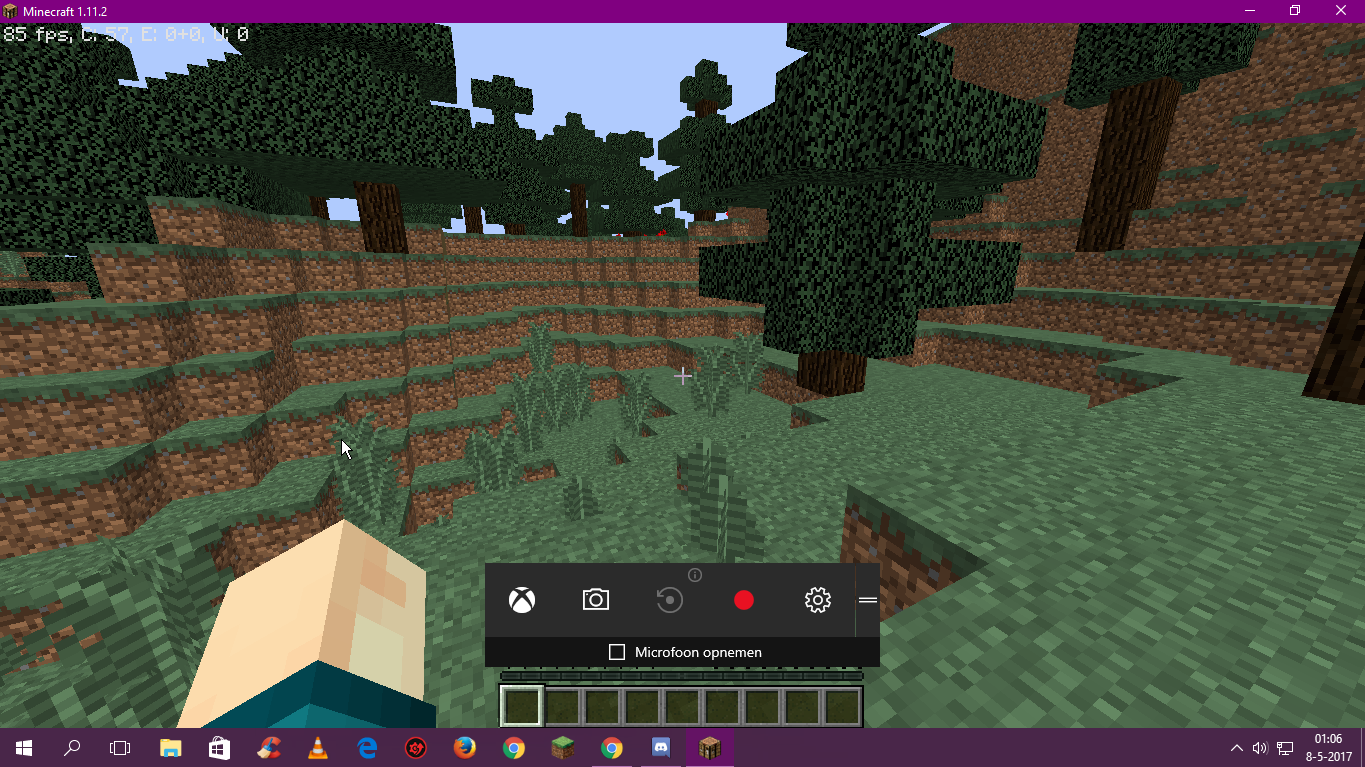
Just simply press the big red button, and record!
In the top right corner, you can see a few things:
-How long you have been recording,
-You can mute/unmute your microphone.
-You can minimalize this bar.
-If you hold the 2 lines, you can move the bar anywhere you want!
Also, if you want to change the settings, you just have to click the settings icon right next to the record button. I don't recommend this though, for me the default settings are the best.
Oh, and the default location of the videos you recorded is in your 'Videos' folder.
Thank you for reading, please let me know if this helped you!
Have a nice day!
-Lucien
Well, if you have Windows 10 like me, this is the perfect solution!
You need no programs at all.
All you need to do is press: Windows key + G
If you did it right, this bar comes up:
Just simply press the big red button, and record!
In the top right corner, you can see a few things:
-How long you have been recording,
-You can mute/unmute your microphone.
-You can minimalize this bar.
-If you hold the 2 lines, you can move the bar anywhere you want!
Also, if you want to change the settings, you just have to click the settings icon right next to the record button. I don't recommend this though, for me the default settings are the best.
Oh, and the default location of the videos you recorded is in your 'Videos' folder.
Thank you for reading, please let me know if this helped you!
Have a nice day!
-Lucien


